
AristAI eBook
Student guide
Create an account, get your course book, start reading. About five minutes.
Use Google Chrome, not Safari or a private window.
00How it works
Everyone does 01, 03 and 04. Do 02 only if you do not have a code yet.
01Account and sign-in
One account per email. Use your university email. Returning students just sign in.
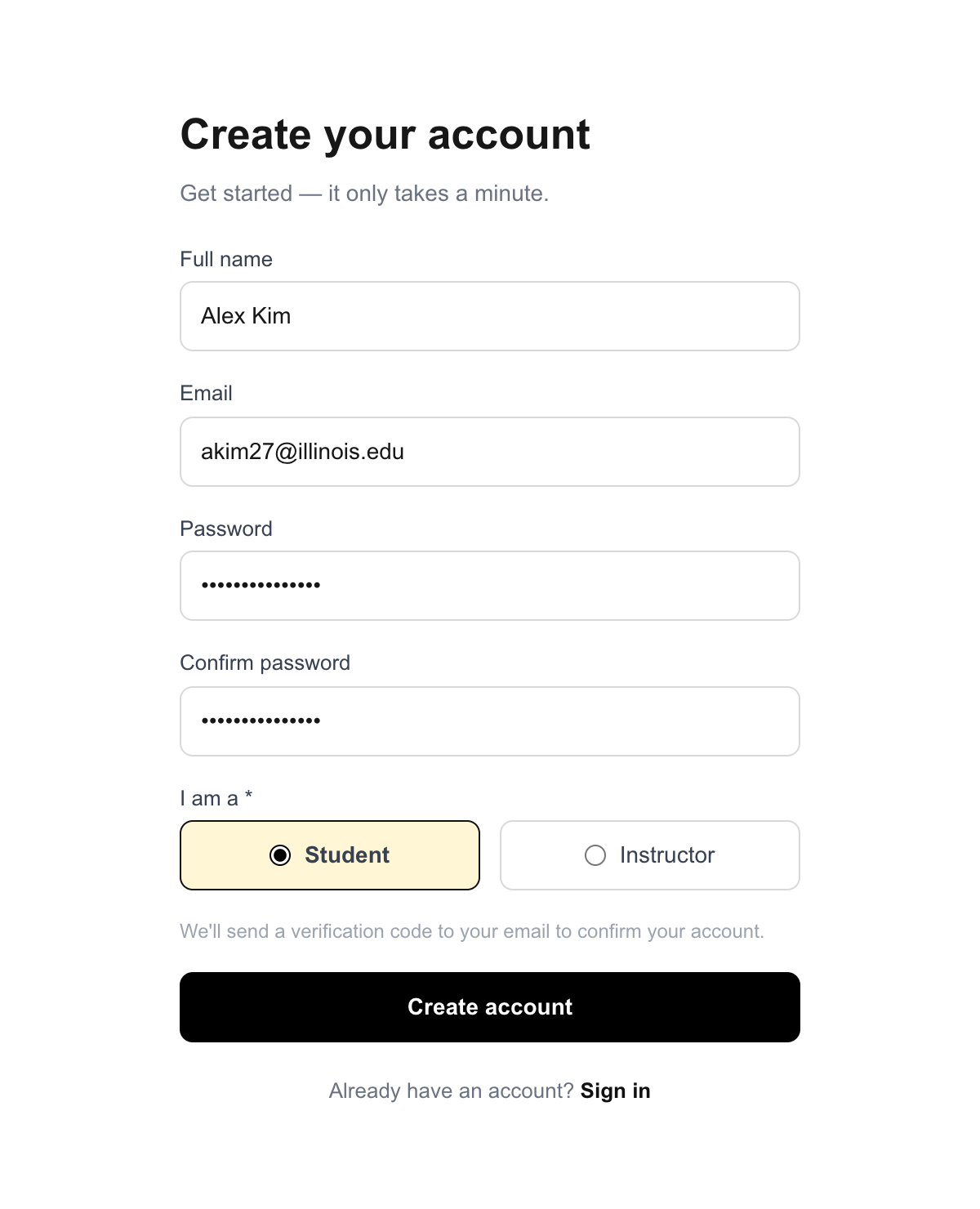
1.1Create an account
- Go to ebook.aristai.io and click Create Account.
- Enter your Full name, Email, and a Password (repeat it under Confirm password).
- Under I am a, choose Student.
- Click Create account.
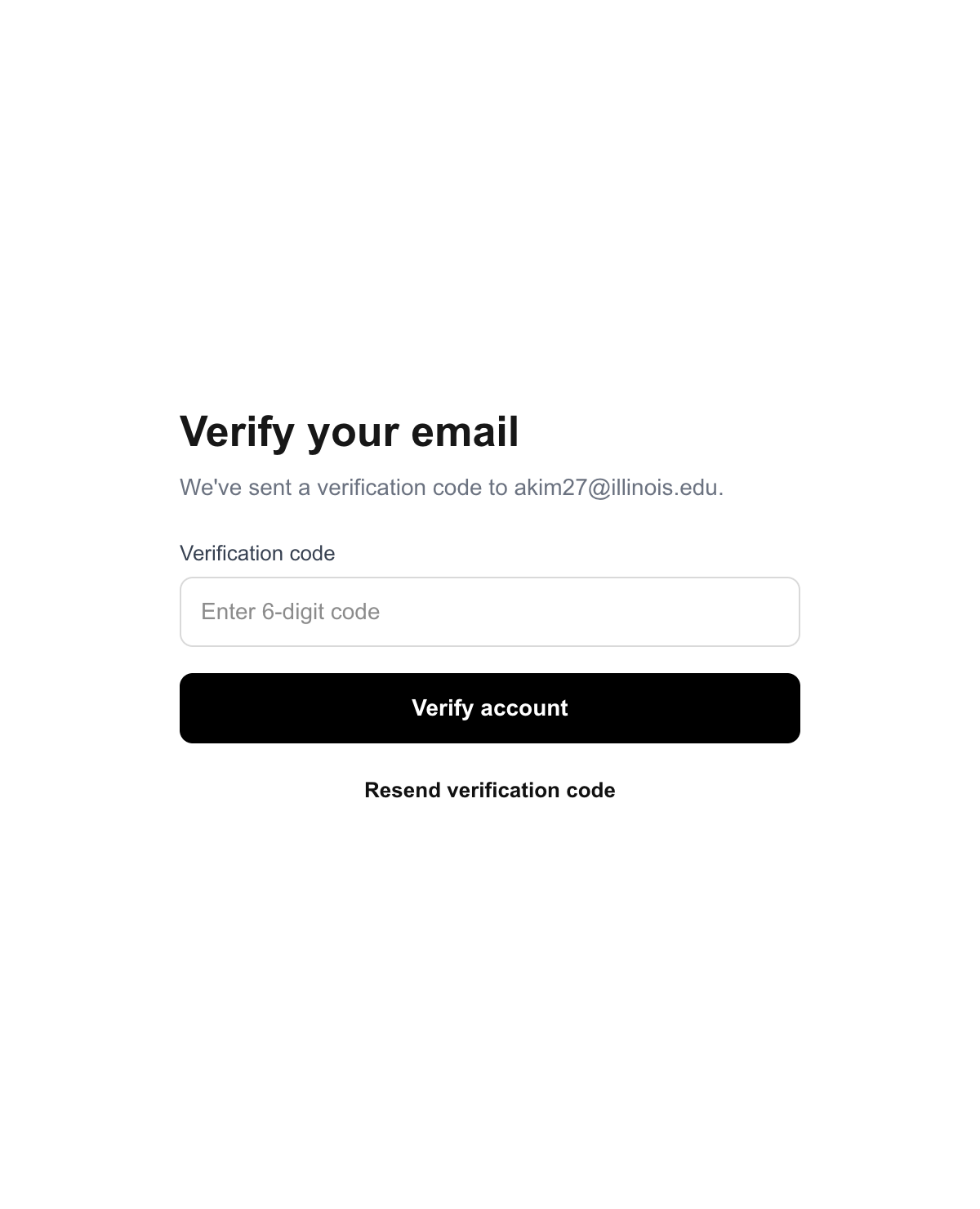
- Check your inbox for a 6-digit verification code, enter it on the Verify your email screen, and click Verify account.
Use your university email. One email, one account: if you already registered, sign in instead.
Your role is fixed at sign-up. Picked the wrong one? Email support@aristai.io.
1.2Sign in
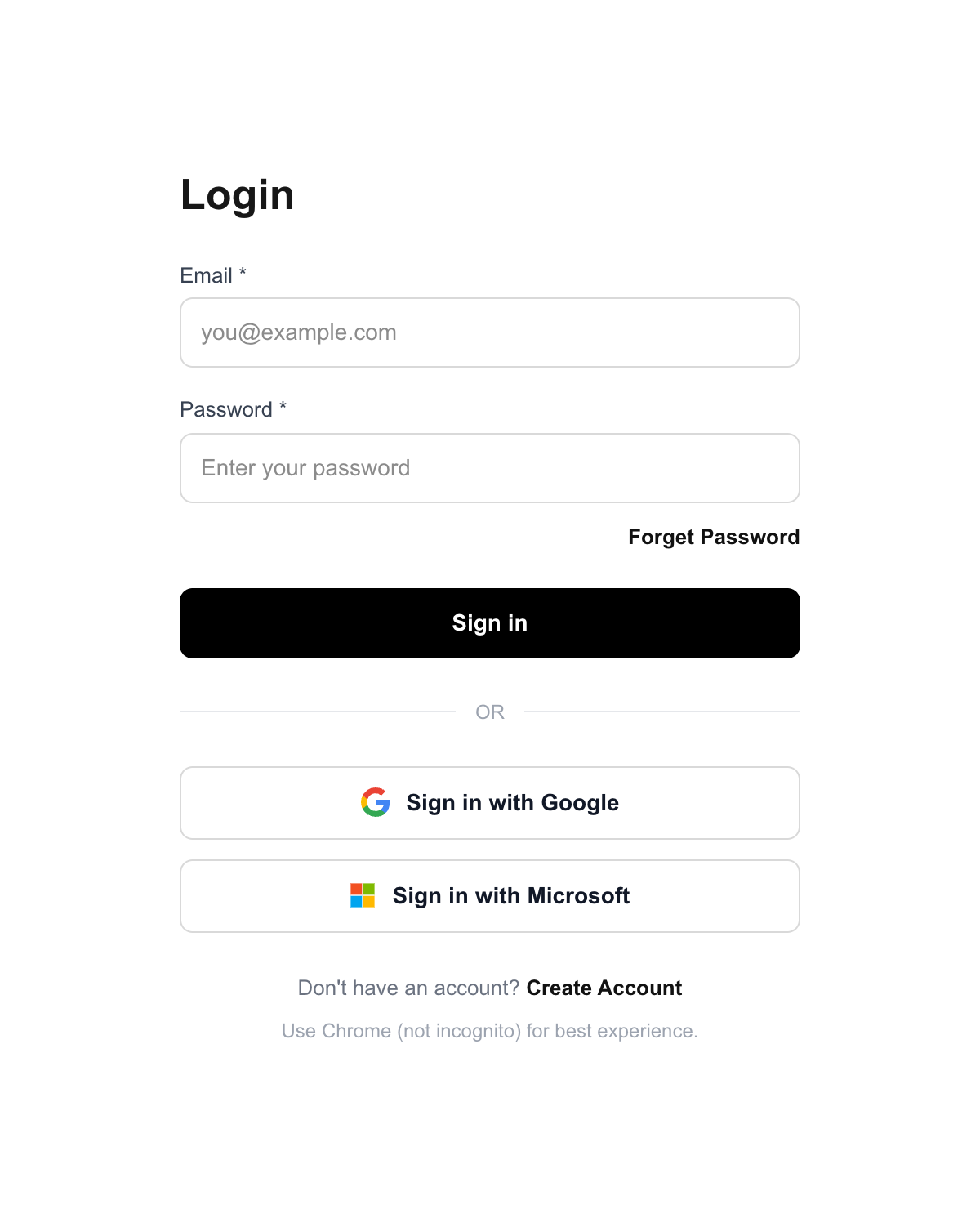
Email and password, then Sign in. Or use Sign in with Google / Microsoft with the same email your books are on.
1.3Already had an account before Fall 2026?
Sign-in was upgraded in August 2026. Use the same email and password as before; your books and notes are still there. The first sign-in may take a few extra seconds.
- Used Google before? Click Sign in with Google.
- Used Microsoft before and your books are missing? Do not buy again; email support@aristai.io.
- Password rejected? Use Forget Password. If the reset errors, email support.
1.4Reset your password
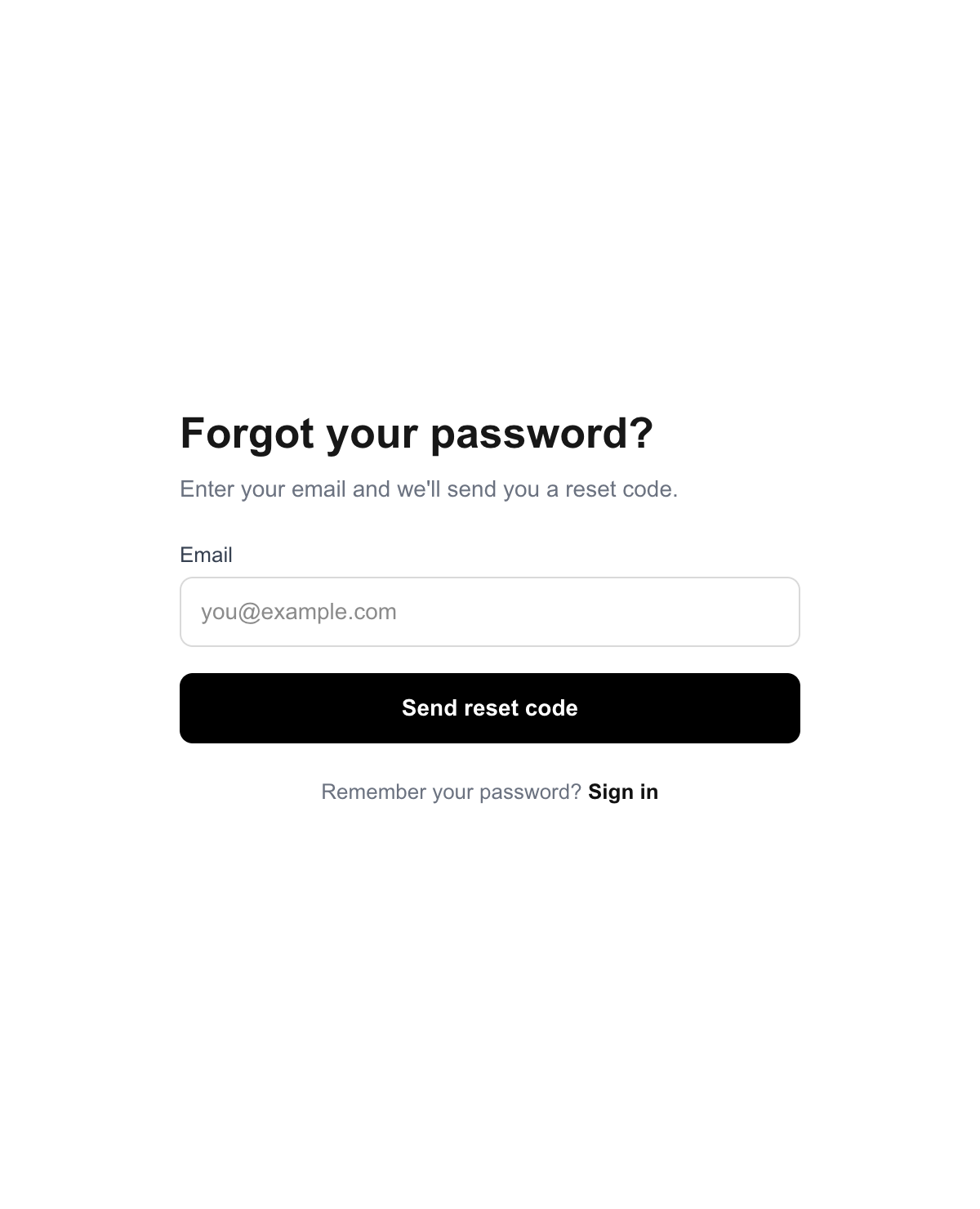
- On the sign-in page, click Forget Password.
- Enter your account email and click Send reset code.
- Enter the 6-digit code and a new password, then Reset password.
- Sign in with the new password.
02Buy a book
Buy the book in Marketplace. After you pay you get an 8-character activation code on screen and by email; enter it in 03. Already have a code from your school? Skip to 03.
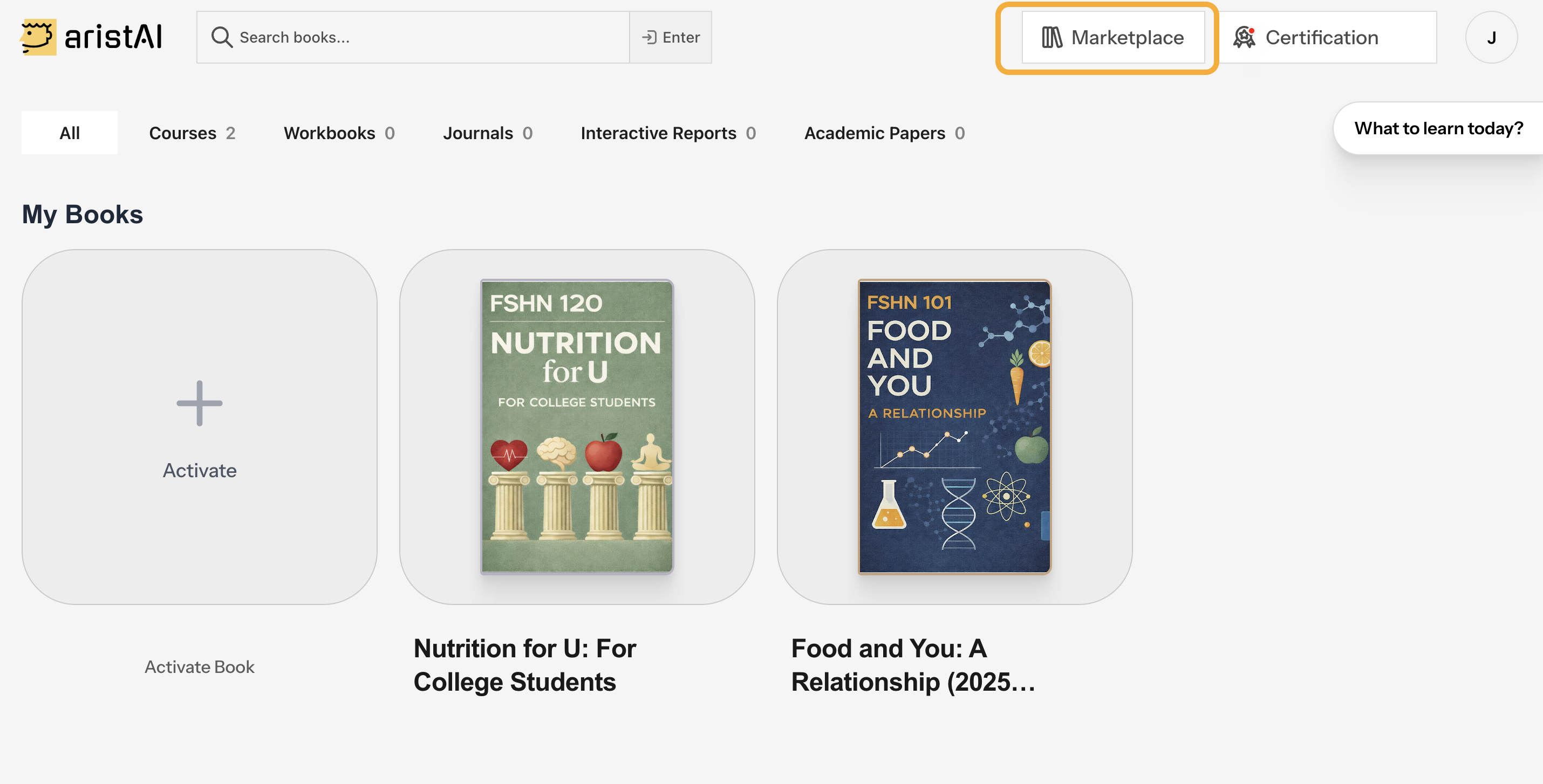
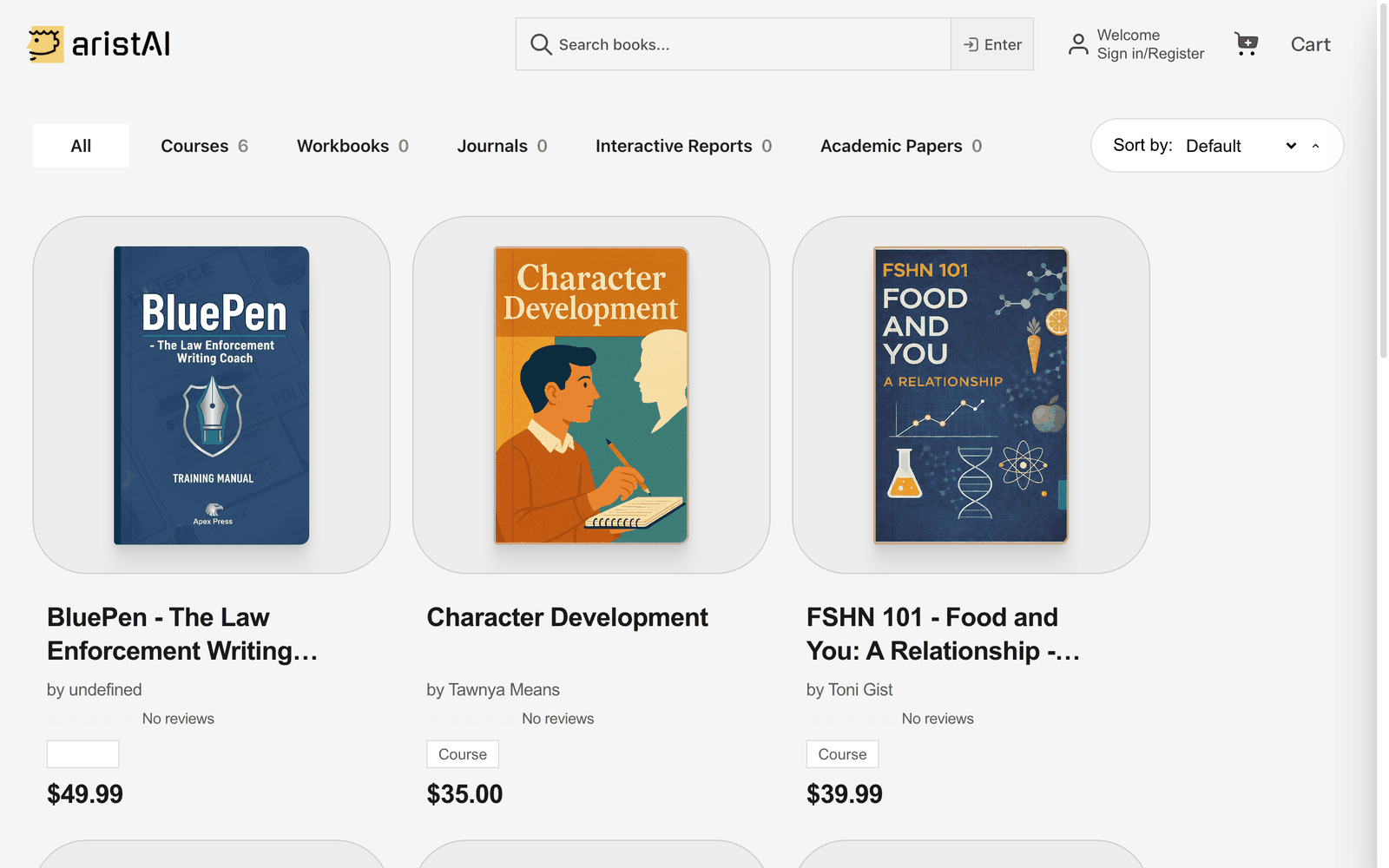
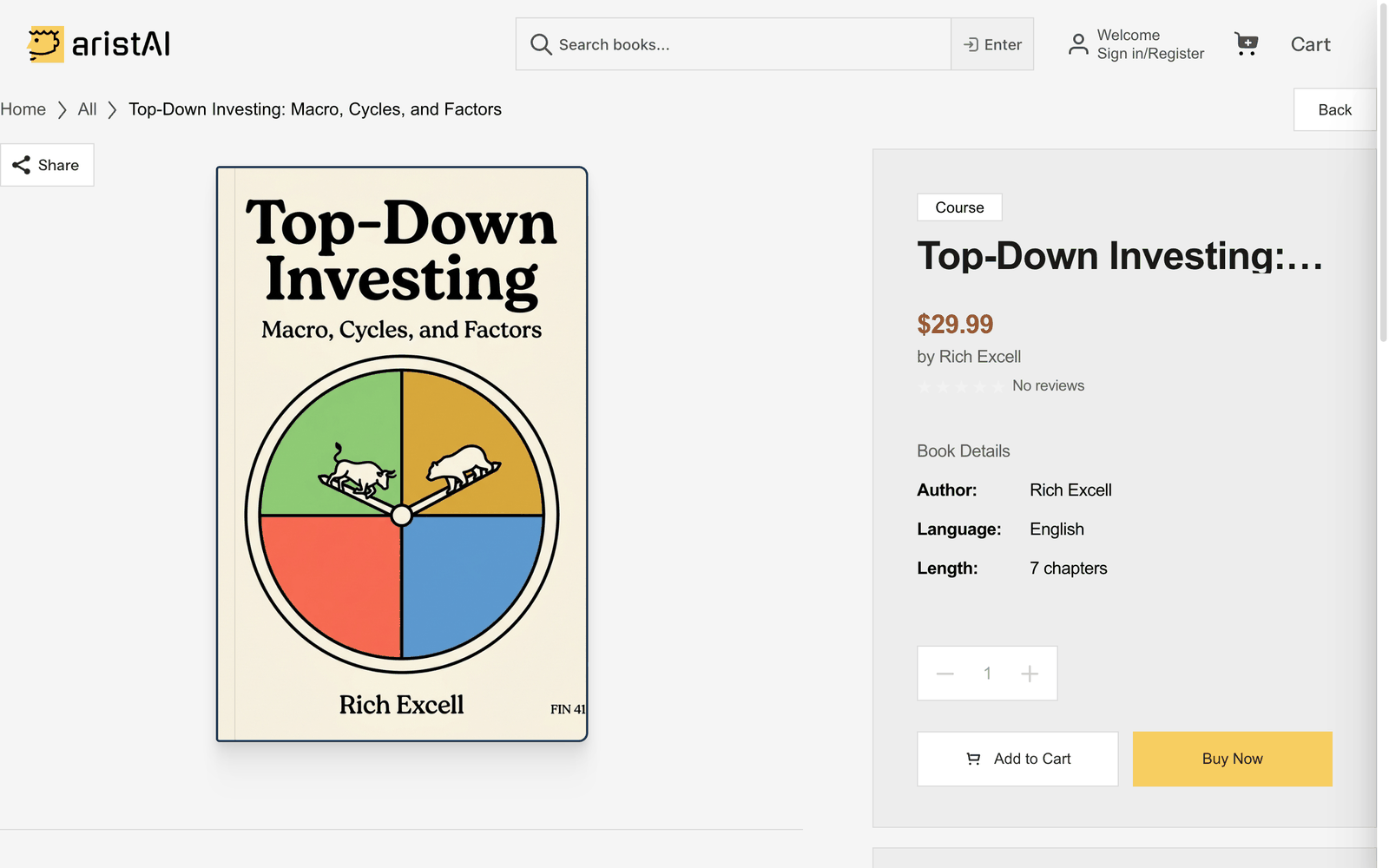
2.1Find the right book
Titles look alike. Match what your instructor gave you:
- Course code in the title (for example FSHN 120)
- Author name
- Cover image
2.2Cart and checkout
- Sign in first.
- Add to Cart each book, then open Cart. Or Buy Now for a single book.
- Check the total, click Checkout.
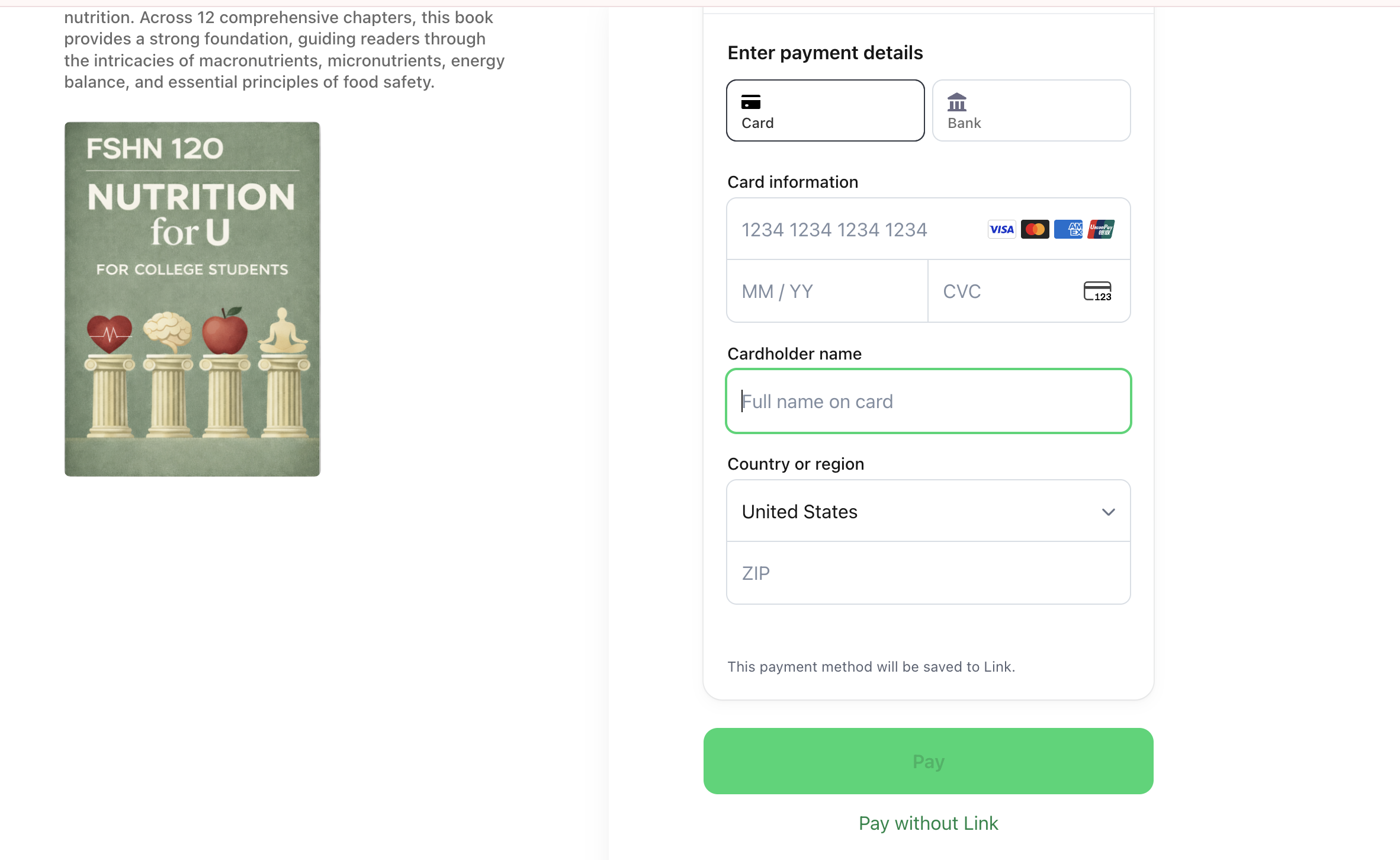
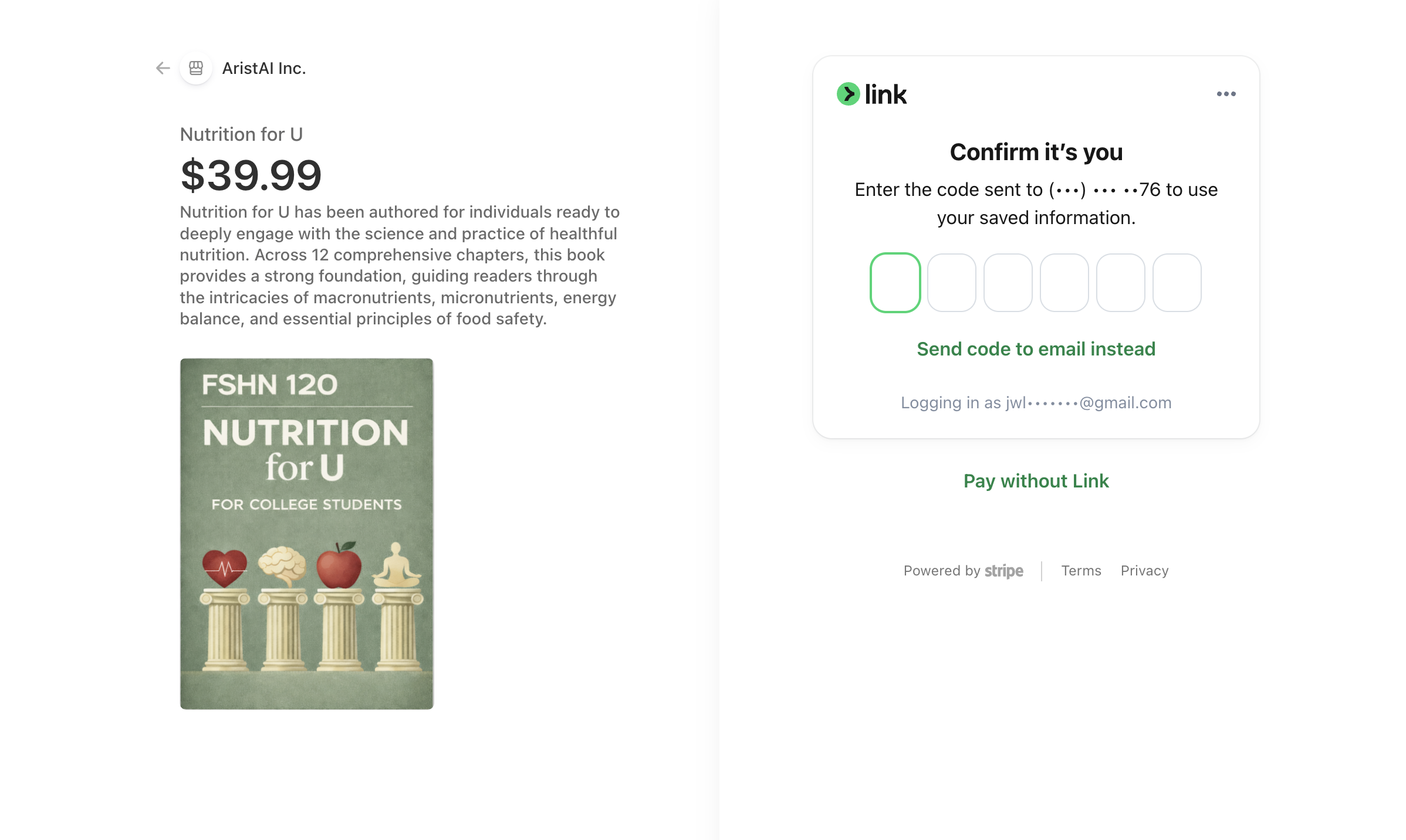
- Pay by card on Stripe. You can skip Link with Pay without Link.
2.3After you pay
The Purchase Successful page shows one activation code per book (also emailed to you). Go to My Books and activate it (03).
Keep the confirmation email; support may need the checkout email.
2.4FIN 419 (Rich Excell): two books
FIN 419 uses two eBooks. You need both, each with its own code.
Put both books in the cart, then enter this code at checkout:
FIN419BUNDLE
Once per account, only with both books in the cart.
03Activate a book with a code
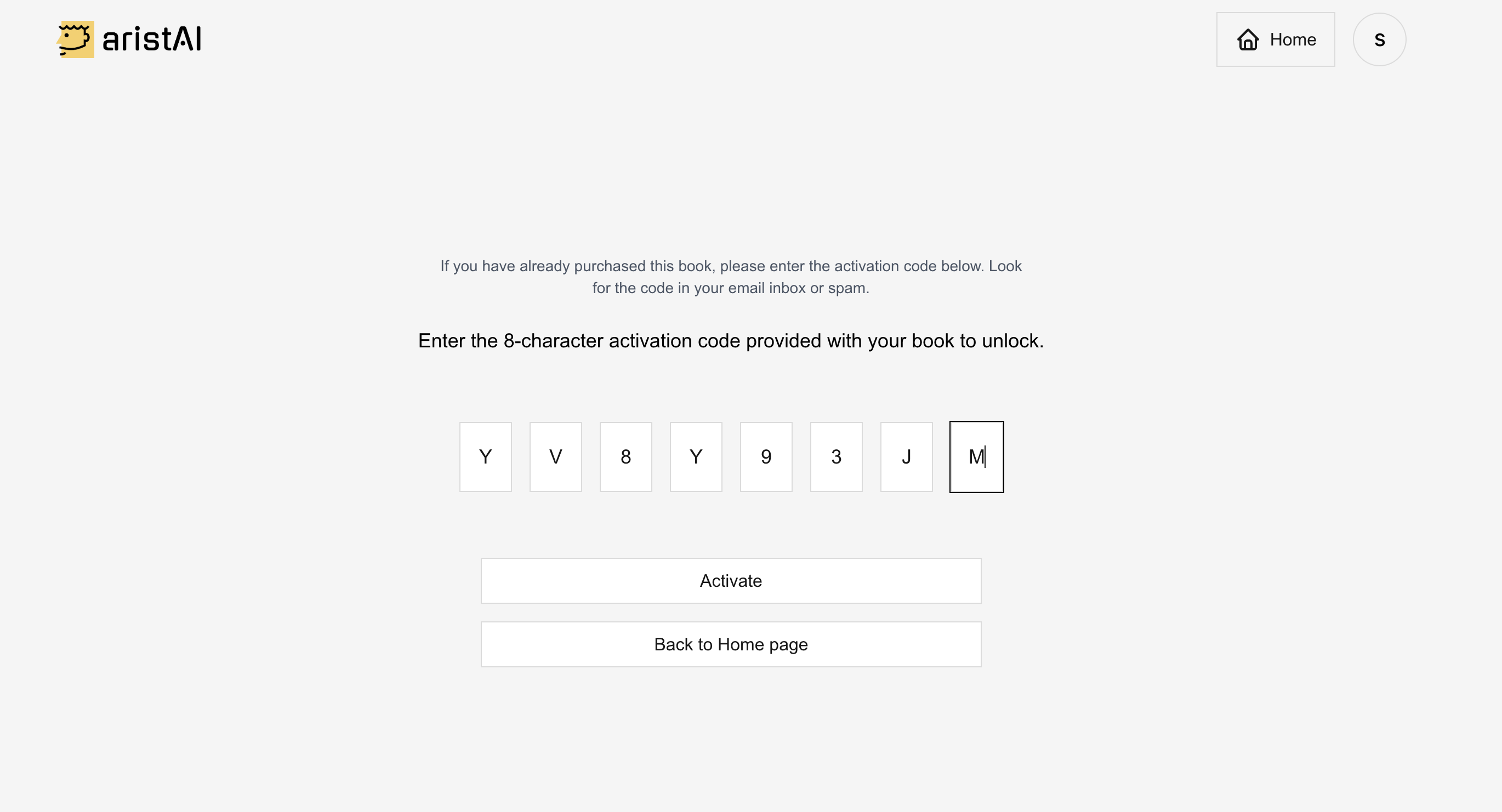
Enter the 8-character code from your purchase (02) or the one your school gave you.
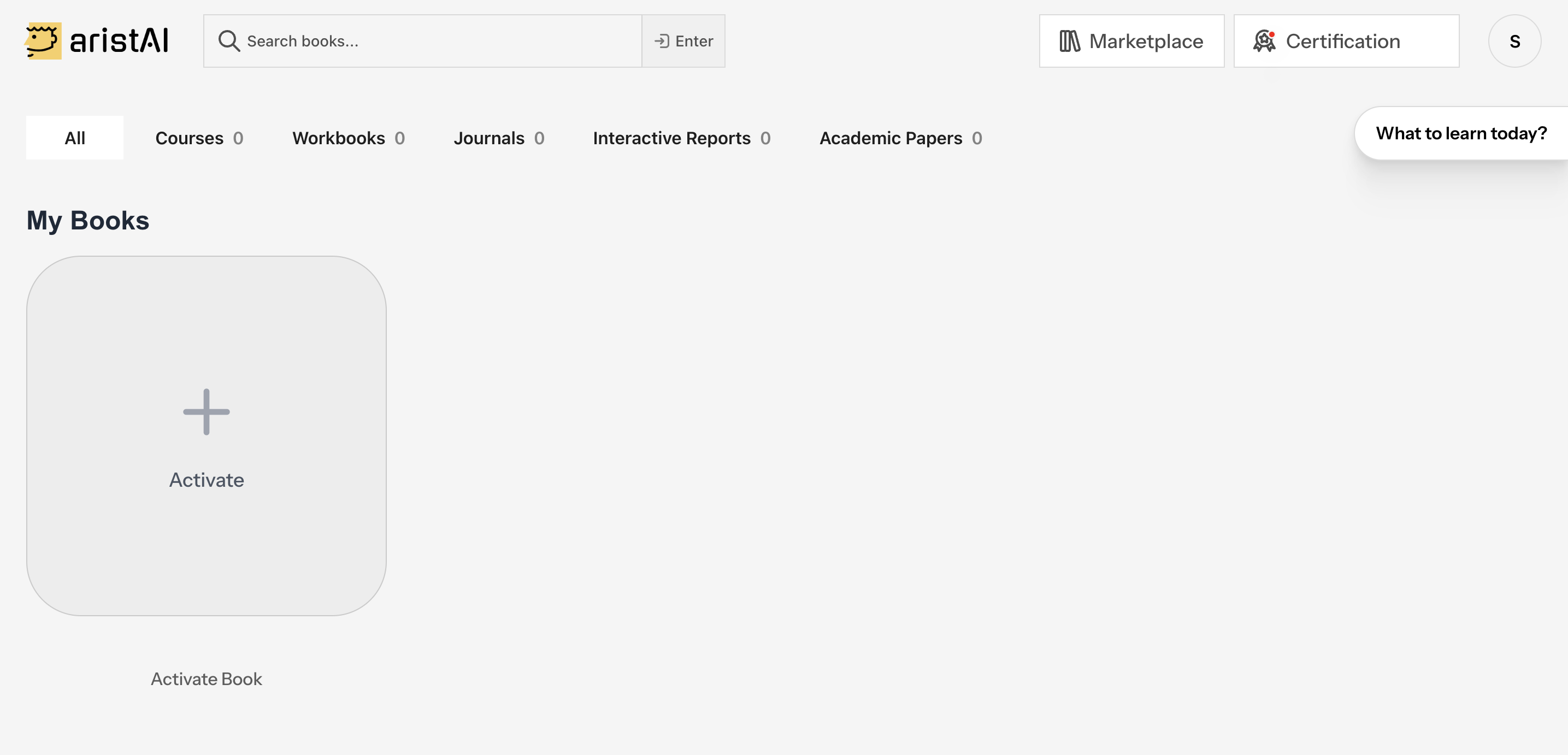
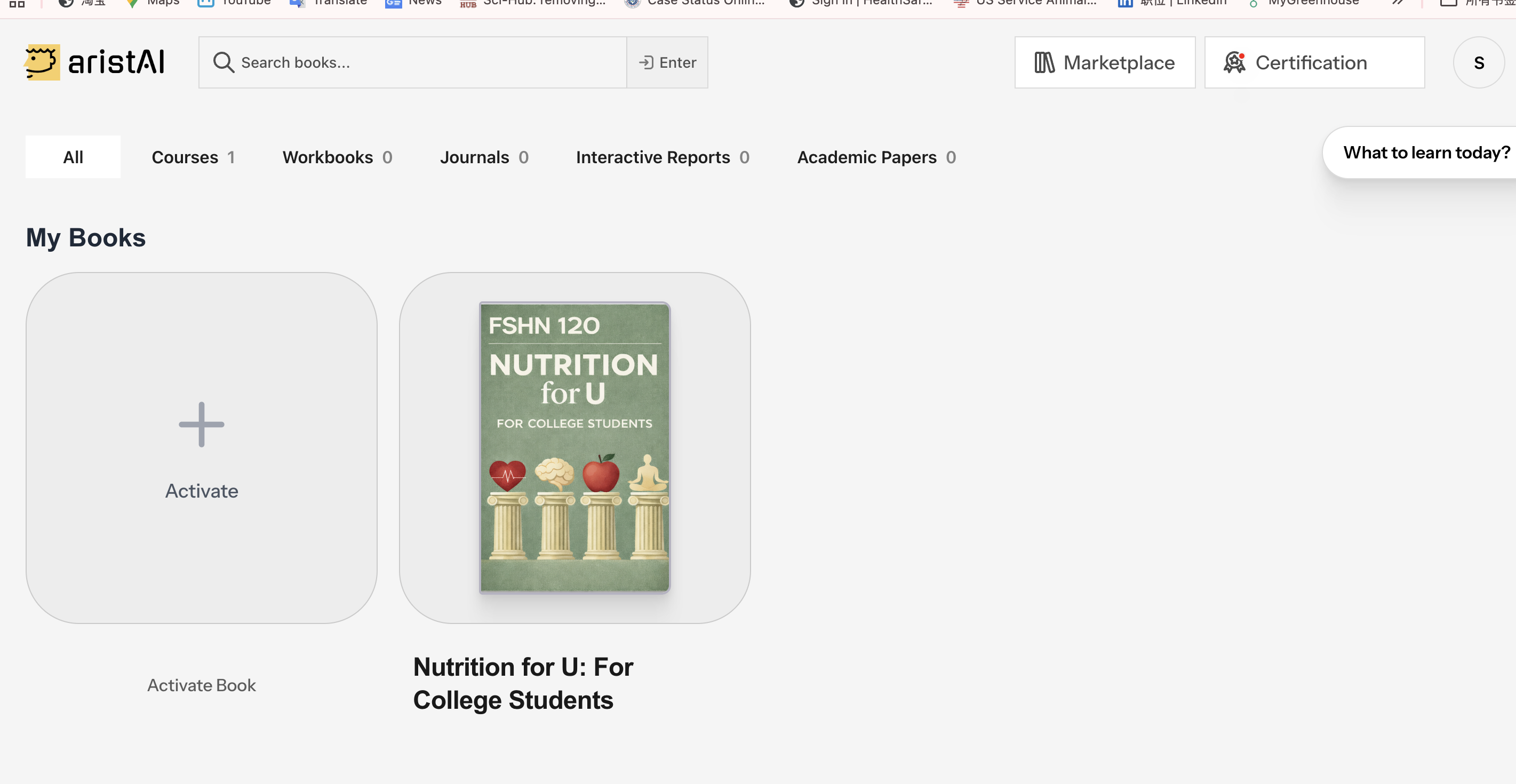
- Sign in. You land on My Books.
- Click the Activate tile.
- Type the code and click Activate.
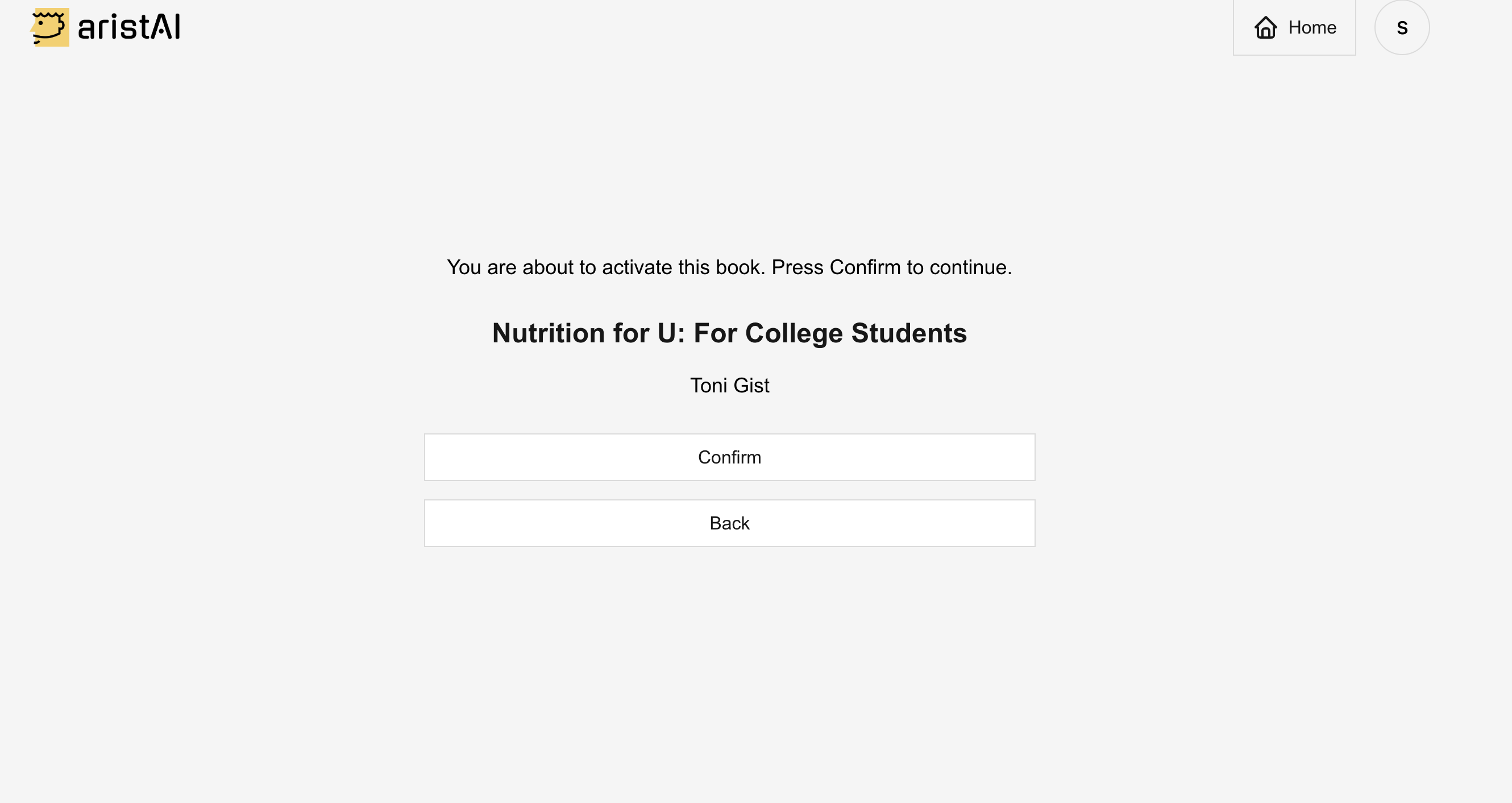
- Check the title and cover, then Confirm.
- The book appears in My Books. Click Read.
A code works once and locks to the account that used it. Be signed in to your own account.
04Read and study
Open a book from My Books with Read. Your instructor decides which of these tools are on for your course.
4.1The reading page
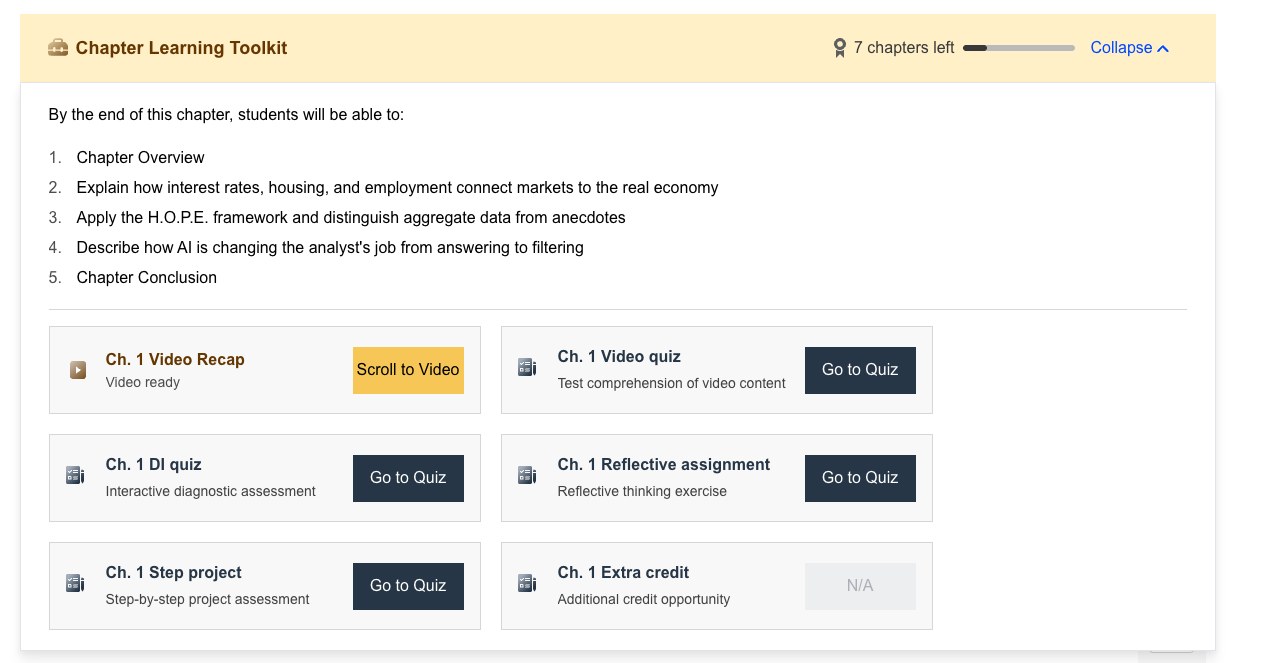
- Chapter Learning Toolkit (top of each chapter): objectives, Video Recap, quizzes.
- Progress bar: chapters left, then Ready for Quiz?
- Sidebar: chapters, videos, Highlights, Notes, Term Flashcards.
- Select text to highlight, add a note, or Discuss it in the AI Classroom.
- Underlined words are glossary terms; the full Chapter Glossary is at the end of the chapter.
- Interface language (English, Español, 中文): avatar menu.

4.2Ask the book
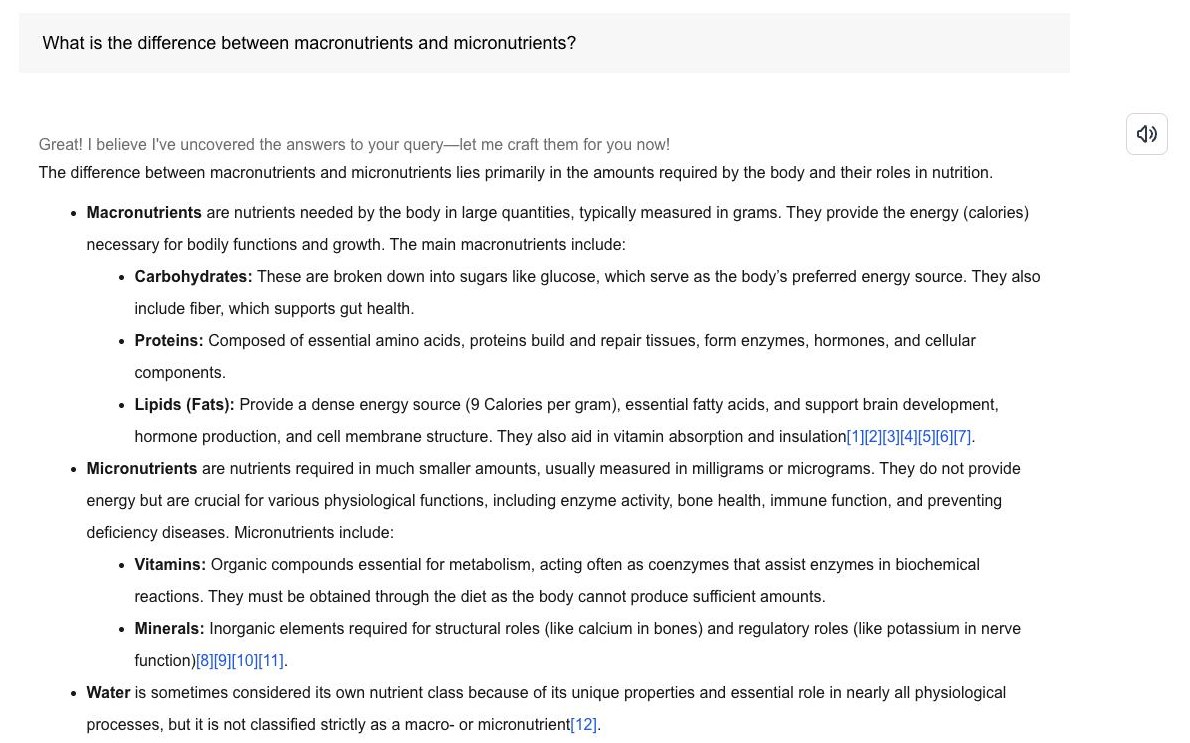
The yellow chat button (bottom-right) opens the Chat Assistant. Pick a mode, type, send.
- Trained ChatbotAnswers from the book, with [1] [2] links to the passage. Read aloud, like, copy, or report an answer.
- Talk to ProfessorTalk out loud with your professor's AI. Start Conversation, then speak.
- Flashcard SummariesSummary cards for any topic you type.
- Video Clip Finder / Image FinderThe clip or figure in the book that matches your question.
4.3AI Classroom and the author's Thinker
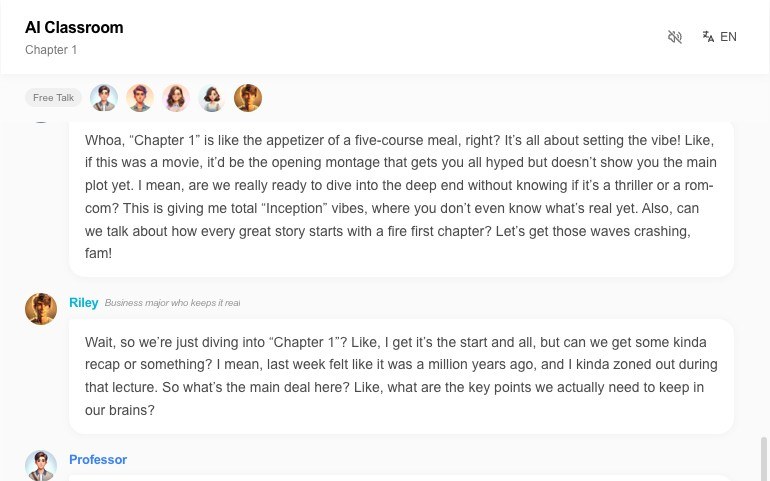
- AI Classroom (left-edge tab): a discussion with an AI professor and AI classmates.
- Free Talk on any topic, or Expert Panel for the chapter. Type @ to address one person, quote book text, attach a file, turn voice on.
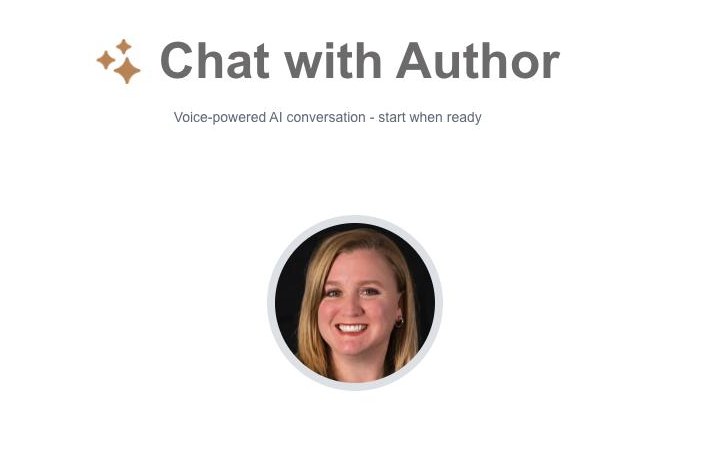
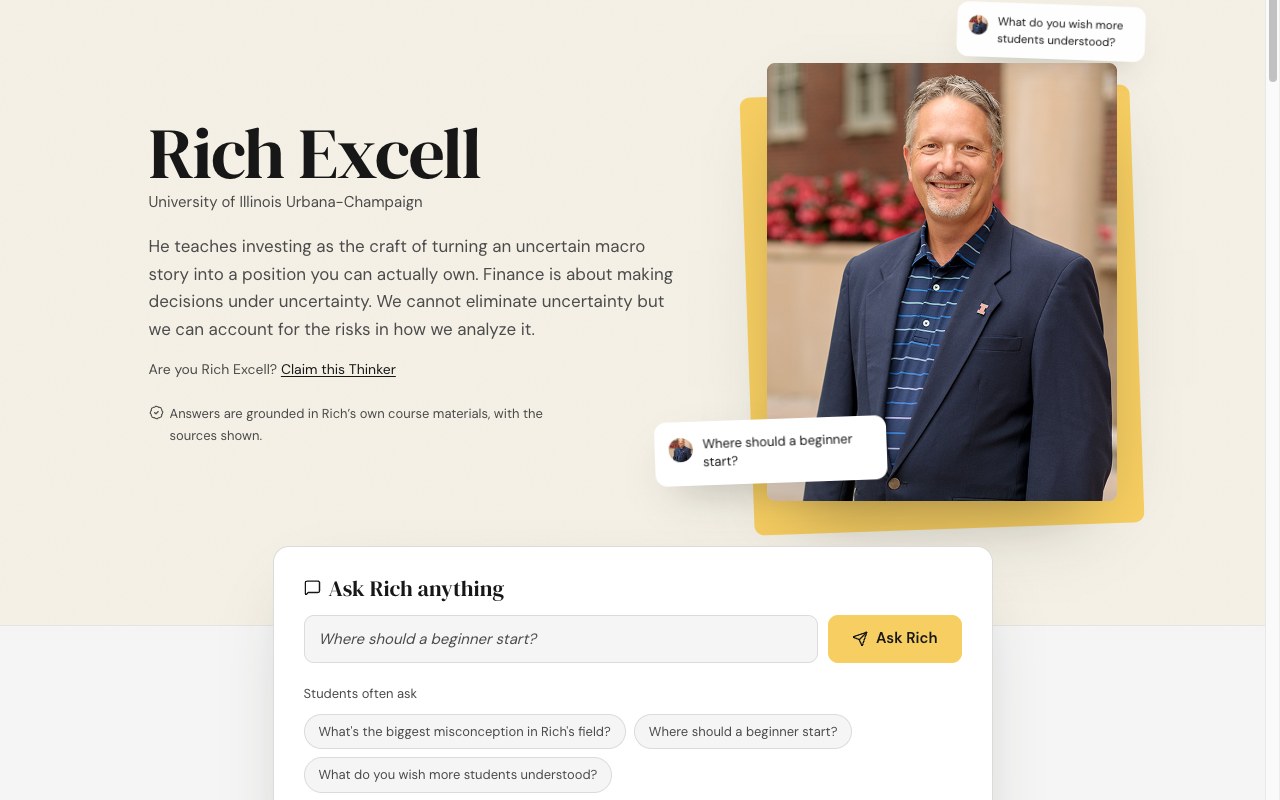
- The author's Thinker (for example Toni's Thinker, Rich's Thinker, below the Classroom tab): the professor's AI on thinker.aristai.io, covering their whole field, with sources.
- Shows only for books you own.
4.4Study the terms
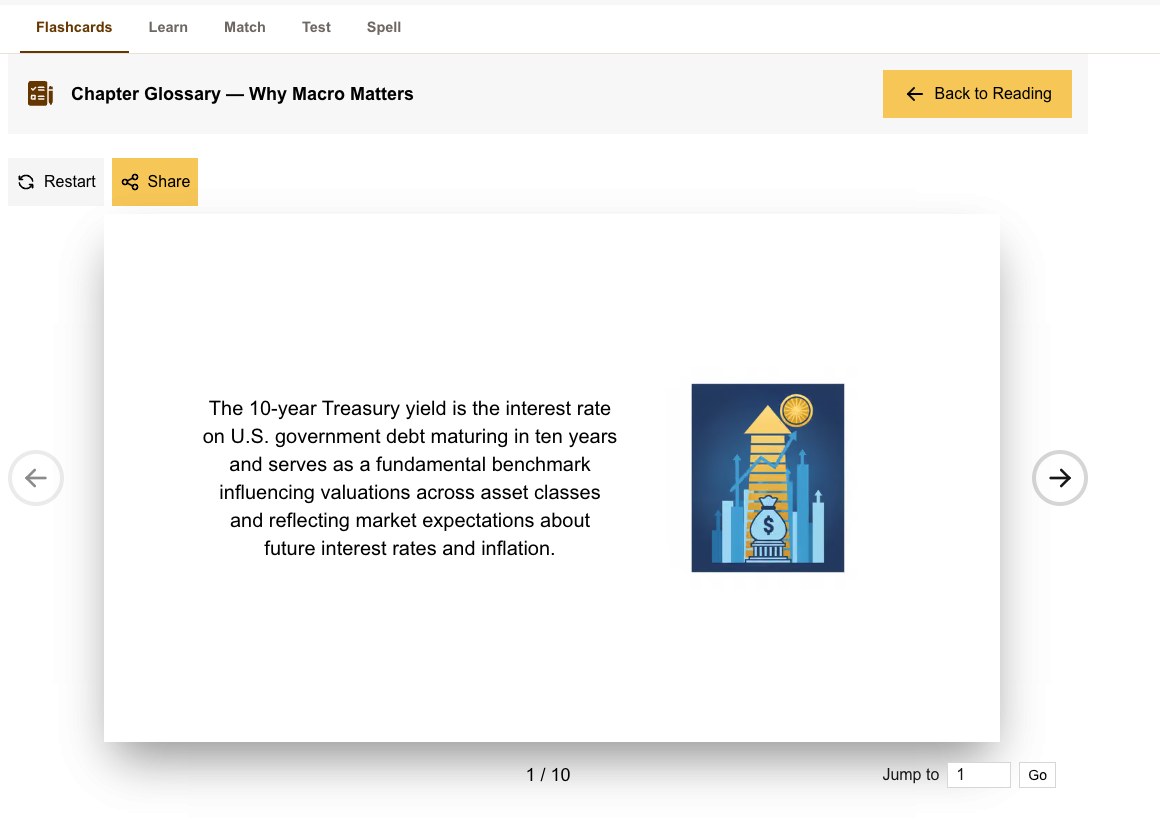
- Chapter Glossary at the end of each chapter. Click Study.
- Flashcards · Learn · Match · Test · Spell.
- Term Flashcards (sidebar) = every term from every chapter you have read.
- Share any card by link.
4.5Video recaps
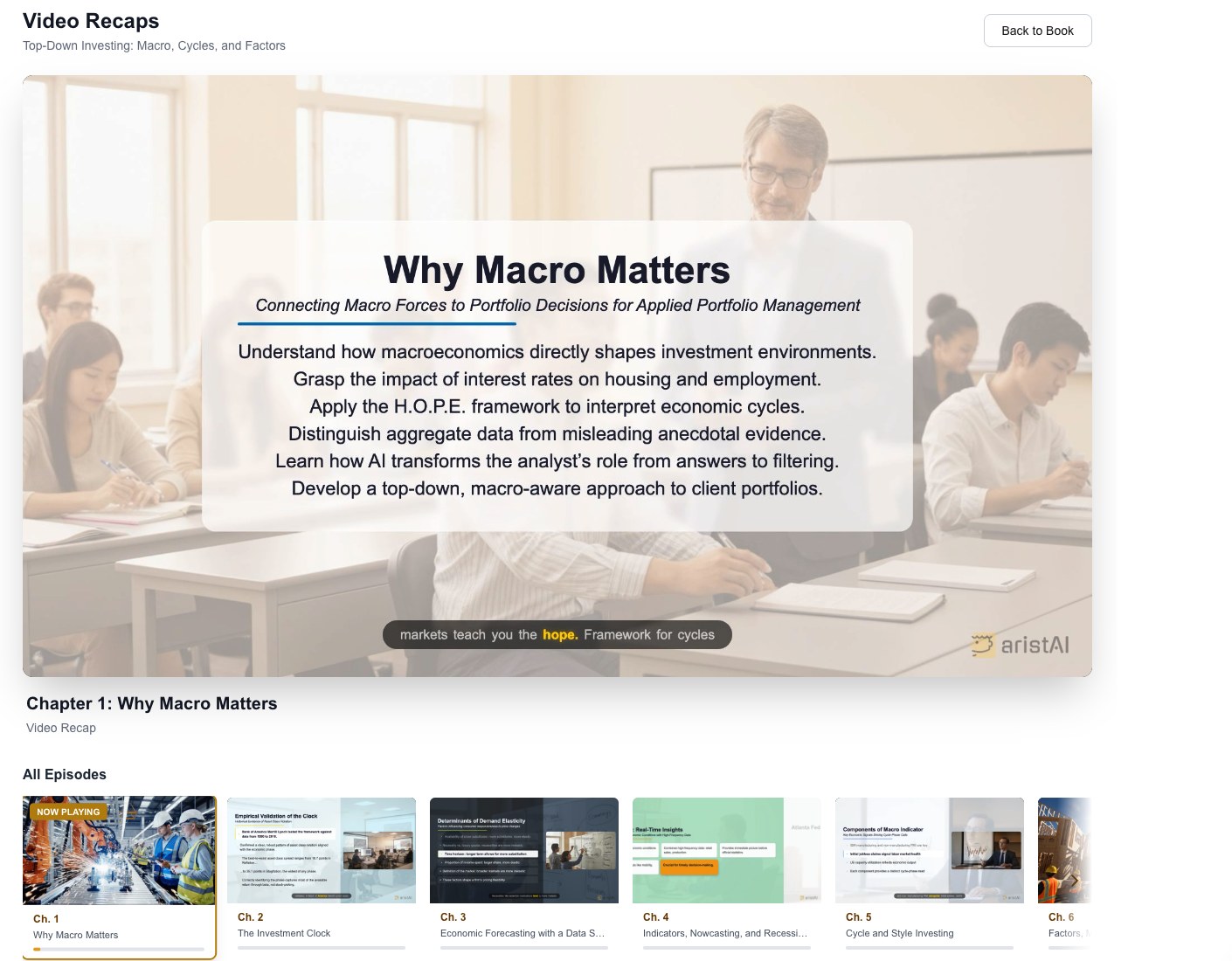
A short recap video per chapter: play it in the chapter (Theater for full size) or open Video Recaps for all episodes. Only in courses that have videos.
4.6Quizzes and your certificate
- Chapter quizzes are in the toolkit. A yellow feedback box after a writing task is normal.
- Read every chapter, then Ready for Quiz? opens the book quiz.
- Pass it: your certificate is under Certification (header). Download, share, or Retake Quiz.
05Troubleshooting
Usually it is the wrong browser, the wrong email, or a mistyped code.
5.1Account and sign-in
- Problem
The verification or reset code never arrives
SolutionWait a minute, check spam, confirm the address is spelled right, then Resend. Still nothing? Contact support.
- Problem
"An account with this email already exists"
SolutionYou already have an account. Sign in, or use Forget Password.
- Problem
My old password is rejected
SolutionYour old password should still work after the August 2026 upgrade (1.3). If not, use Forget Password; if that errors, contact support and we will reset it.
- Problem
I signed in but My Books is empty
SolutionCheck which email you signed in with (avatar, top-right). Books belong to the account that activated them, so sign in with the original email. Used Microsoft before? Contact support; do not buy again.
- Problem
The page keeps loading or sign-in loops
SolutionUse Chrome, not Safari or a private window. Then sign out, clear cookies for ebook.aristai.io, sign in again.
5.2Activation codes
- Problem
I do not have a code
SolutionCheck your syllabus, Canvas, or your instructor's email. Otherwise buy the book (02).
- Problem
"Invalid code" or activation fails
SolutionRetype it (0/O, 1/I, 8/B are easy to mix up). Each code works once; if it was used, ask whoever issued it or contact support.
- Problem
I activated the wrong book
SolutionCodes are book-specific, so this is rare. Contact support with the code and your account email.
5.3Purchases
- Problem
I paid but there is no code
SolutionCheck the Purchase Successful page, your checkout email (and spam), and View Purchase History in the avatar menu. Still nothing after ten minutes? Contact support with the Stripe receipt.
- Problem
I paid but the book is not in My Books
SolutionPaying gives you a code; you still have to activate it (03).
- Problem
I bought the wrong book
SolutionContact support with your account email, checkout email, and the book you need. Do not activate the wrong code.
- Problem
FIN419BUNDLE is rejected
SolutionBoth FIN 419 books must be in the cart, and the code works once per account.
5.4Reading
- Problem
The book will not open or spins forever
SolutionUse Chrome, reload, then sign out and back in. Slow Wi-Fi delays chapters with videos.
- Problem
A quiz or activity is missing from the toolkit
SolutionInstructors turn activities on per chapter. Ask your instructor, not support.
- Problem
Which browsers work?
SolutionChrome (recommended), Edge, Firefox. Not Safari.
06Where to find help
Include your account email, your course, and a screenshot.
- Sign-in, codes, purchases, reading: support@aristai.io
- Assignments, due dates, content: your instructor
- Activation codes: whoever issued the code first, then support